
Enrich Google Sheets with DataLedger — automatically
Add a company number to your sheet and let Zapier fill the rest: name, local authority, employees, assets, liabilities, equity, and SIC. No PDFs. No manual copy-paste.
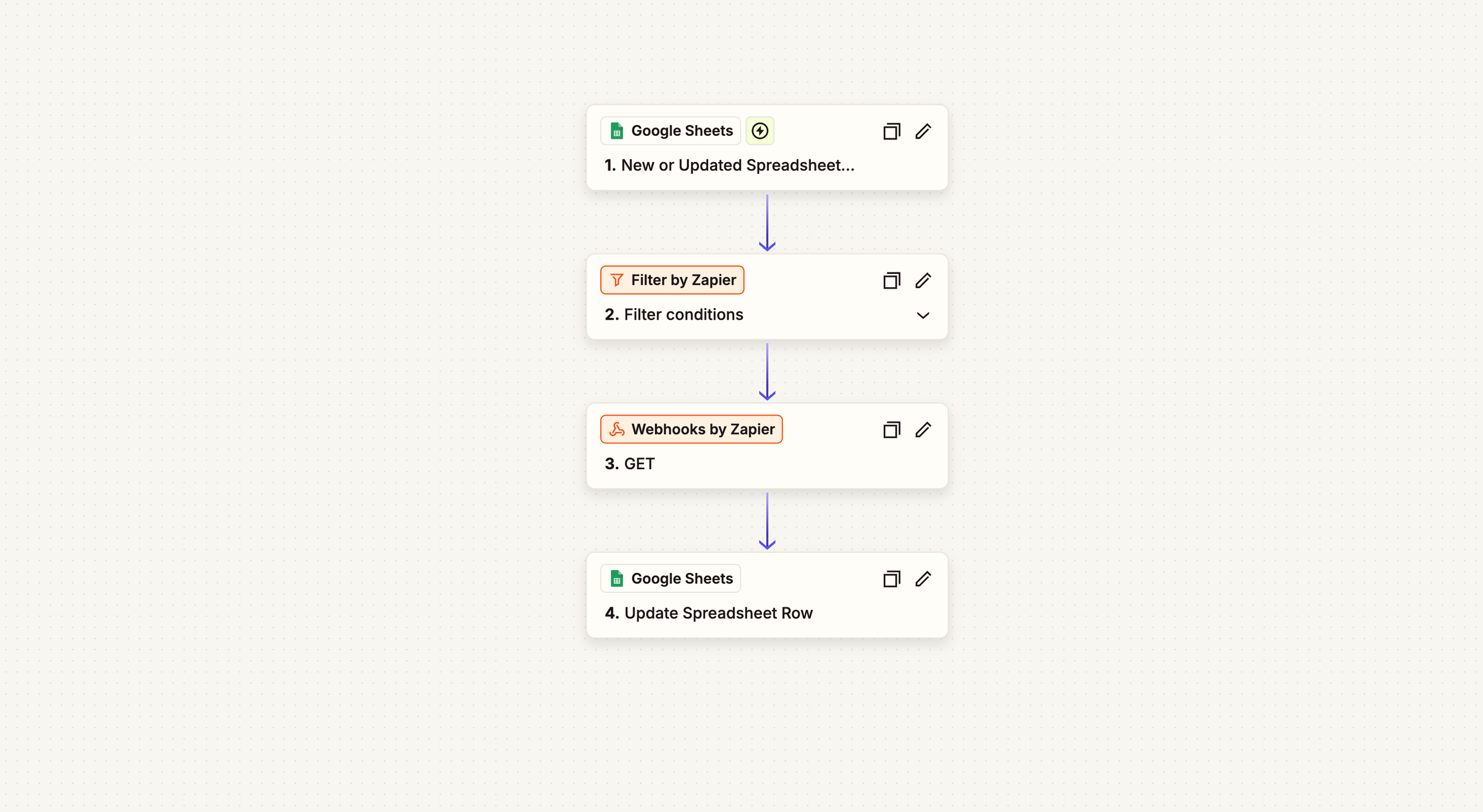
Intro
What you’ll learn (2 minutes setup, ~10 minutes mapping):
Trigger a Zap when a company_number is added in Google Sheets
Call the DataLedger API securely with your API key
Update the same row with profile + balance-sheet fields
Add a status column to make troubleshooting easy
What you need:
Google account + a simple Google Sheet
Zapier account
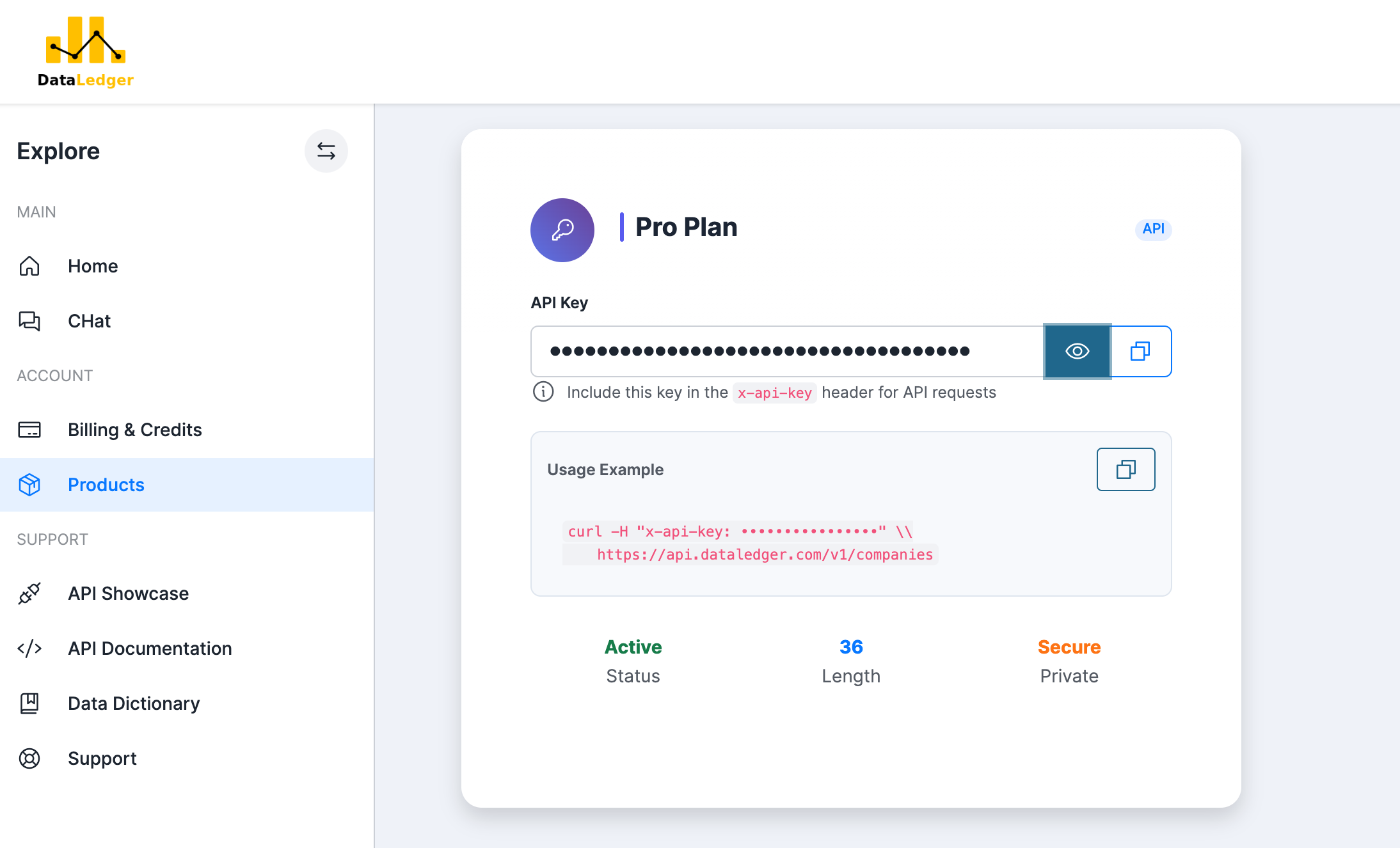
DataLedger API key (from your account area)
Set up your Google Sheet

Option A (quick start):
👉 Download the Google Sheets template (preloaded with all DataLedger fields)
This template includes every available column (profile, officers, SICs, balance sheet, profit & loss, ratios). Perfect if you want the full dataset ready to go.
Option B (custom setup):
If you’d rather start small, create a sheet with these minimum columns:
company_number(your input column)dl_status(optional, to track success/errors)A few target fields such as:
company_namelocal_authoritysic1_descriptionc_calculated_total_assetsc_calculated_total_liabilitiesc_calculated_equity
You can add more columns later as you need them.
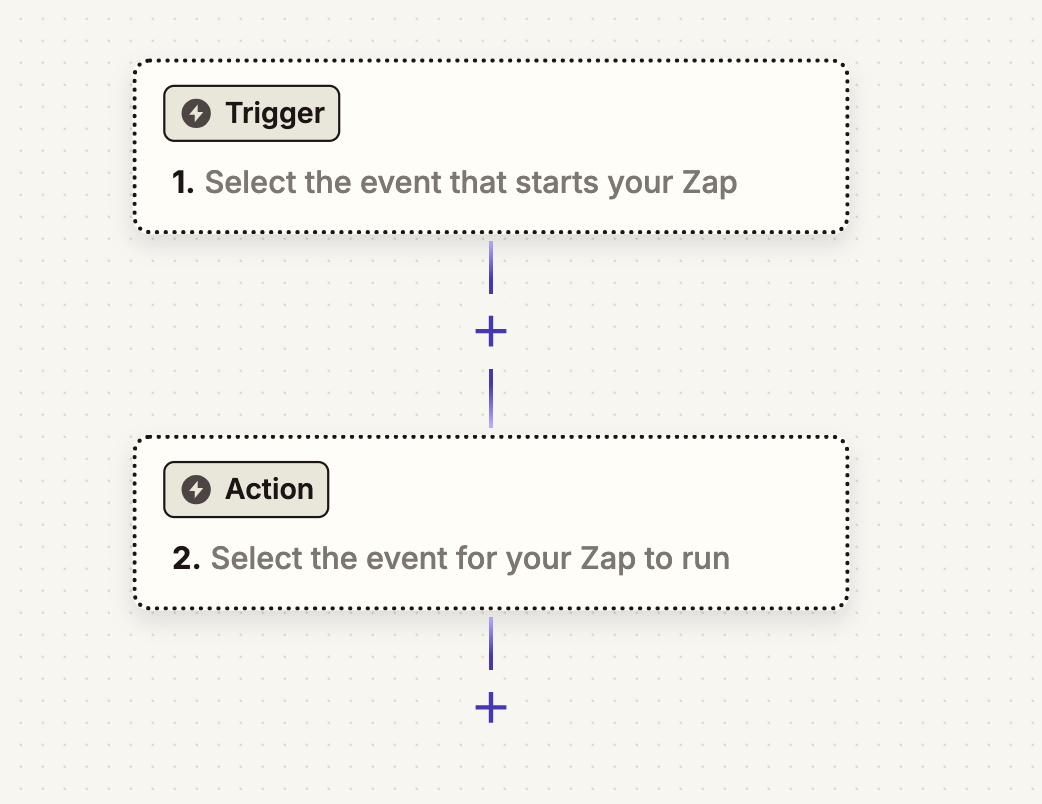
Create the Zap trigger
In Zapier:
App: Google Sheets
Event: New or Updated Spreadsheet Row (or New Spreadsheet Row)
Connect your Google account
Choose Spreadsheet + Worksheet
Trigger Column:
company_number
Tip: Add a Filter by Zapier step — continue only if company_number is not empty.


Add a filter to prevent a loop
⚙️ Important filter: Add a Filter by Zapier step straight after the trigger:
Only continue if
dl_statusis empty
This means the Zap will only fire on fresh company numbers. Once the row has been updated and dl_status is set to OK (or Error), it won’t run again — avoiding an endless loop.

Call the DataLedger API (Webhooks)

App: Webhooks by Zapier
Event: GET
URL:
https://api.dataledger.uk/v1/companies/12345678
(Map company_number from the trigger. Ensure ONLY the number is passed.)
Headers:
x-api-key: YOUR_API_KEY
cURL reference:
curl -X GET \ "https://api.dataledger.uk/v1/companies/12345678" \ -H "x-api-key: YOUR_API_KEY"
Common mistake to avoid: Don’t append the entire row as query params. Only pass company_number.
Map API response fields to your row
Now we tell Zapier how to update the same row that triggered the Zap:
Action: Google Sheets → Update Spreadsheet Row
Row: Map the Row ID from the trigger step (this ensures only the correct row is updated).
Field mapping: For each column in your sheet, select the matching property from the API response.
Example:
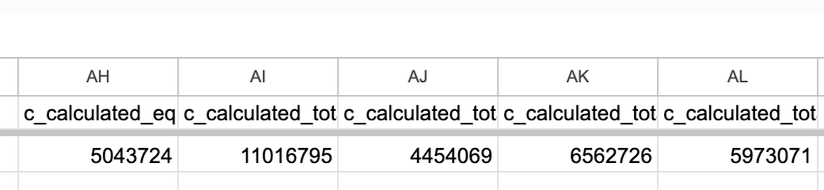
company_name←response.company_namelocal_authority←response.local_authorityc_calculated_total_assets←response.financials.c_calculated_total_assetsc_calculated_total_liabilities←response.financials.c_calculated_total_liabilitiesc_calculated_equity←response.financials.c_calculated_equity
dl_status: Manually set this field to
"fetched".This is essential — it marks the row as complete so the Zap won’t keep re-triggering when the row changes. This resolves the warning ‘Possible Zap loop detected’.


Test end-to-end
Enter a real company_number in the next empty row
Watch the Zap run (Zapier Task History)
Confirm the row fills with data;
dl_status = OK

Troubleshooting
403 Forbidden
Authorizationshould be added as a header“x-api-key”: YOUR_API_KEYCheck that only
company_numberis added to the URLEnsure you have DataLedger credits available
Row didn’t update
Confirm Row ID from the trigger is mapped in Update Row
Verify JSON keys exist in the Webhook test output
Re-test the Webhook step and remap any changed keys
Zap keeps running in a loop
Make sure you have a
dl_statuscolumn.Add a Filter by Zapier step → only continue if
dl_statusis empty.When updating the row, always set
dl_statusto"fetched"(or"error"if the API fails).
Data comes back blank or unexpected
Double-check the company number is valid and active.
Some fields may not exist for smaller companies (e.g. turnover, P&L).
Use
c_for current year values,p_for previous year.If a field is missing, the API will return
null.
Zap runs but Google Sheets isn’t updating
Ensure you’ve selected the correct Spreadsheet and Worksheet in the update step.
Check that column headers in your sheet exactly match what you’re mapping in Zapier.
Avoid hidden rows or merged cells — they can break Zapier’s row mapping.
Frequently Asked Questions
What does the dl_status column do?
It prevents loops. When you first add a company number, dl_status is empty, so the Zap runs. When updating, Zapier sets dl_status to “fetched”. That stops it re-triggering when the row changes.
Can I enrich multiple company numbers at once?
Yes. Paste or import several company numbers into the sheet. Zapier will process each new row individually. For bulk jobs, add a Delay step or use batching to respect API rate limits.
Which DataLedger fields can I get in Google Sheets?
All major profile, balance sheet, and P&L fields are available, including:
Company name, address, SIC codes, officers
Assets, liabilities, equity (current and previous years)
Turnover and profit/loss (where disclosed)
Growth rates and ratios (debt-to-asset, debt-to-equity)
Download the template sheet to see the full column list.
Why are some values empty in the returned row?
Some companies file abbreviated accounts. Smaller companies often don’t disclose revenue, profit, or detailed breakdowns. In those cases, the API returns null.
Can I filter for companies with specific assets or liabilities directly in Zapier?
Zapier just handles the enrichment. To filter companies by assets/liabilities, use DataLedger’s CHat or API search endpoints to get the relevant company numbers, then push results into Sheets.
Is my API key safe in Zapier?
Yes — keep it in the x-api-key header. Never paste it into the sheet or URL. If a key leaks, contact us and we will reset it for you.
How often is the data updated?
DataLedger syncs with Companies House the day after the accounts are submitted. Balance sheet and P&L fields update as soon as filings are available.
Can I use this workflow for lead generation?
Yes. Many users enrich lists of company numbers (from LinkedIn, CRM exports, or other sources) to pull structured financials and employee counts directly into Sheets.